Connected tools
Connect a platform integration, publish a custom tool in Tool studio, or add a remote MCP server.
Open Connected tools. Stedia can only act where you have a connection.
 GitHub
 Linear
 Gmail
 Outlook
 Microsoft Teams
 Google Drive
 SharePoint
 OneDrive
 Excel
 Shopify
 GitHub
 Linear
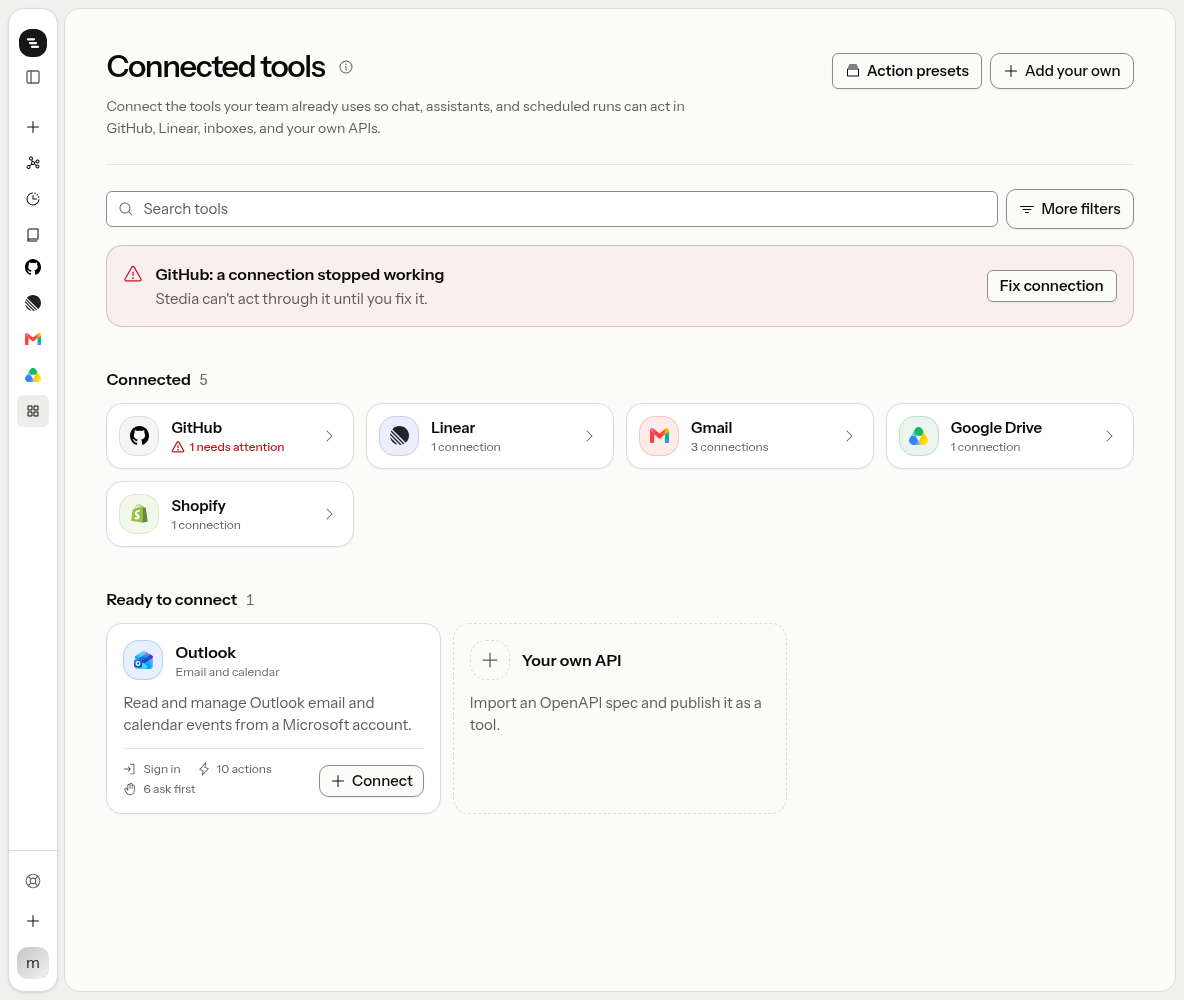
Two buttons sit at the top right of the catalog:
| Button | Who | What |
|---|---|---|
| Action presets | Everyone | Presets that fill in an action before Stedia runs it |
| Add your own | Admins | Import an API opens Tool studio. Add an MCP server adds a remote MCP server as a workspace tool. |
The catalog groups tools into Connected, Ready to connect, and Off for workspace. Admins also see More tools via MCP: servers that vendors such as Notion, DeepL and Stripe host themselves, ready to add. See MCP servers. When a connection stops working, a notice above the groups names the tool, and Fix connection opens it. Search or filter by category to narrow the list.
Connect
Open the tool
Open a tool. Click Connect or Manage connections.
Choose who uses it
Under Access, choose Personal or Workspace (share with the workspace; may require admin).
Sign in
Choose How to sign in. To sign in with the provider, click the Continue to button, which names the tool (for example Continue to Gmail). To paste credentials instead, fill them in and click Connect.
If the browser blocks the OAuth window, allow popups and try again.
The detail panel lists the tool's actions and connections. A tool an admin switched off shows Off for this workspace with an Open settings link. Actions that write show Asks first. Those need a teammate to approve in chat or on a scheduled run unless you allow them without asking on a schedule, or pick Allow without asking in this chat in a chat.
If something goes wrong
| What you see | What to do |
|---|---|
| The sign-in window does not open | Your browser blocked it. Allow pop-ups for Stedia and click the Continue to button again. |
| A connection shows Needs attention | The provider stopped accepting the stored sign-in, for example after a password change or a revoked token. Open the tool and click Check again. If that fails, click Connect again. |
| "The provider rejected the credentials" | Sign in again. For a pasted token, check that it has the permissions the tool's page lists. |
| "The tool doesn't allow this action for this account" | The connected account is missing a permission, for example a scope the token lacks or an admin consent the provider needs. The tool's page lists what it needs. |
| "The tool couldn't find what this action needed" | The item was deleted or moved, or the connected account cannot see it. Check that it exists and that the account has access. |
| "This tool is turned off for your workspace" | An admin switched it off. Admins turn it back on under Settings → Tools and knowledge. See Tools and knowledge. |
| "You don't have permission to create this connection" | Connecting for the whole workspace needs an admin. Connect it as Personal, or ask an admin. |
| "The provider is rate limiting requests" | Wait a minute and try again. Asking for less at once helps, for example one week of emails instead of a year. |
| A scheduled run shows Nobody approved in time | An action that asks first waited longer than the schedule's Approval wait. Raise it in the schedule's Options, or allow the action without asking. See Schedules. |
What you can connect
Platform tools:
GitHub
Linear
Grafana
Gmail
Outlook
Microsoft Teams
Google Drive
Google Tasks
Google Docs
Google Calendar
Google Sheets
OneDrive
Excel
SharePoint
Shopify
Slack
YouTube
Custom:
Tool studio
Publish a custom HTTP tool from an OpenAPI document.
MCP servers
Add a remote MCP server as a workspace-owned tool.
Shape how an action gets called:
Off for workspace
A tool hidden from members stays that way until an admin enables it. On a self-hosted install, a missing catalog entry usually means the operator did not set that provider's env vars.