Files
Find generated documents, images, and files you uploaded in chat.
Open Resources and choose the Files tab.
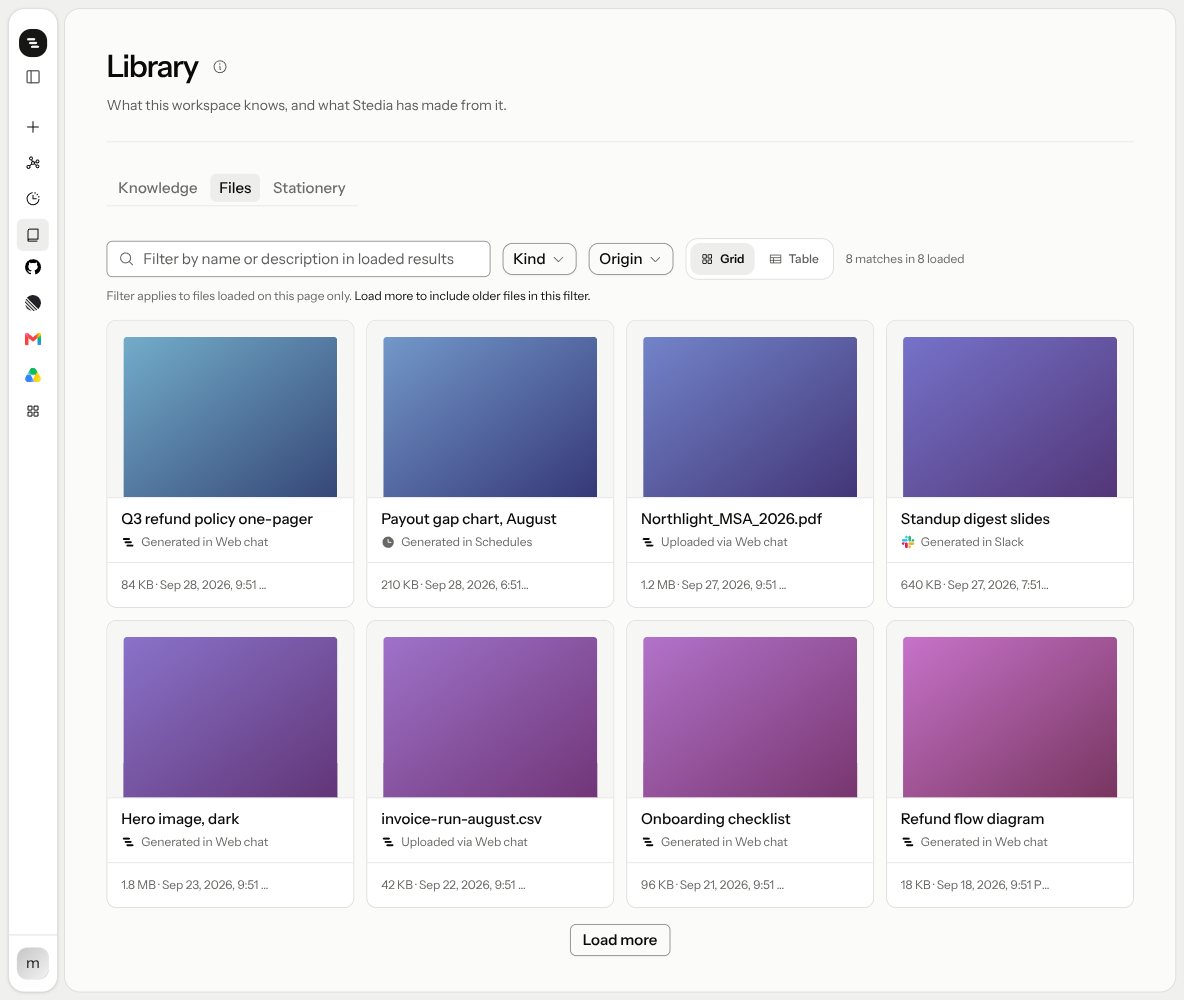
The page lists files Stedia generated (documents, spreadsheets, slides, pages, images and apps), files you uploaded in chat, and files Stedia opened from a tool, such as an email attachment, once you saved them. Files someone else made in a chat they shared with you are not listed here. You find them in that chat.
Documents come as PDF unless you ask for something else. Say "as a Word file" and you get a
.docx you can edit, comment on, and track changes in. It carries your letterhead's paper,
margins, colours, type and running header and footer, but not a logo or any other element
your design places at a fixed spot on the page. Those are PDF only.
A Word file opens here the same way a PDF does: Stedia renders it in the page, so you can read it before downloading. What it cannot tell you is how long it is: only Word decides where the pages break, so the card shows the size instead of a page count.
A spreadsheet is a table as an Excel (.xlsx) or CSV file: a list, an overview, an export. Ask for
"a spreadsheet" or "as CSV". The first row holds the column headings, bold, with a filter. The file
holds values only: no formulas, charts or colours. Dates are written as text, such as 2026-10-01.
A CSV opens correctly in German Excel, with ; between columns and , in numbers. Download it, or
let an assistant save it to OneDrive, SharePoint or Google Drive or attach it to a mail.
A page is a single web page Stedia designs for you: a one-pager, a pricing table, a dashboard.
It uses your brand and opens here like a document. Pages are static: they run no
code and load nothing from the internet, so charts are drawn into the page and links open in a
new tab. Download one as an .html file and open it in any browser.
Filter by Kind (Generated, Uploaded or From a tool) and Origin (Web chat, Slack, Discord, Teams, Google Chat, WhatsApp, Telegram, Schedules). Switch Table and Grid.
Filters apply to what is already loaded. There is no server-wide search yet.
Preview, download, or delete a file. Open in chat jumps to the thread that produced it.
Changing a document
On a wide screen, a document opens next to the chat while Stedia writes it. On a phone or a narrow window it opens over the chat instead: tap Open on its card once it is done. You read the text as it appears, one paragraph at a time. When it is done, Pages shows the pages with your letterhead: a PDF as it prints, a Word file as a preview that Word may set a little differently.
- Ask for a change. Select a passage and click Ask Stedia. The passage and the file are added to your message. Say what should change, for example "shorter, and name the launch date". Stedia changes only that passage and makes a new version. Select a few words and only those words go along; select across paragraphs, or words that appear twice in one paragraph, and the whole paragraphs go along.
- Fix a typo yourself. Select a paragraph and click Edit, or on a computer use the pencil beside it. Save makes a new version without asking Stedia. A table opens as cells: the menu on a heading cell aligns, adds or deletes its column, the handle beside a row does the same for the row, and the strips at the end add a row or a column. A list opens as items, one field each, with a menu to move, indent or delete an item and the keys Enter, Tab and Backspace. Everything else opens as its text.
- Go back. Every change is a version. Pick an older one from the Version menu, and click Restore this version to make it the newest.
- Who can change it. The person who asked for it and everyone in the chat it was made in, as long as they are in the workspace. Others in the chat read it.
A document written before this existed keeps its preview and download, but opens without the text and has no versions. Ask Stedia to write it again to get them.
Apps
An app is a page you can use: a dashboard with filters, a calculator, a planner, a checklist. Ask for one in web chat, for example "build an app that compares our three offers". The app opens next to the chat as soon as Stedia has built it. It uses your brand without you naming a colour.
- Change it by asking. "Make the bars wider" or "add a total row" makes a new version. Pick an older one from the Version menu, and click Make this the newest version to go back to it.
- See how it works. Code shows what Stedia wrote.
- Save what it makes. When an app wants to save a file, such as a CSV export, Stedia asks first. The same goes for a link that leaves the app.
- Keep it. Download app saves one
.htmlfile that runs in any browser, offline. - Save it as a PDF. Save as PDF opens your browser's print dialog; choose Save as PDF as the printer. Turn on Background graphics there to keep your brand's colours.
- Share it. Under Share app, add people from your workspace and choose what each may do: Can use opens and runs the app, Can edit also changes it and restores versions. General access sets the same for everyone in the workspace. People in the chat the app was made in can edit it too. Nobody outside the workspace can open it, link or not. Only its owner, the person who asked for it, changes who has access, and only they can delete it.
All your apps
Apps in the sidebar lists the apps you made under Mine, and the ones others gave you, shared with the workspace, or made in a chat you are in under Shared with me. Click Open to use an app on its own page. Edit in chat starts a chat with the app beside it and named in your message, so you can ask for a change from any chat, as long as you may edit it. New app opens a chat with a few ideas to start from.
An app can also remember things between visits, such as a ticked checklist, and ask Stedia to summarise or draft inside it, billed to your workspace. The first time an app wants to ask AI for you, it says so and waits for Allow. Nothing runs before that.
Several people can work in one app at once, such as a team board: each sees the others' changes within a few seconds, and two changes made at the same moment are both kept. An app can also read a CSV or Excel file you pick, save an Excel file, and copy text when you click its copy button.
An app does not read your connected tools. To build one on your data, ask Stedia to fetch it in the chat first: "get this week's Linear issues and make a board of them" puts the issues into the app. To refresh them, ask again.
An app runs walled off from Stedia and the internet: it cannot read your account, your other files or any website. If it stops with an error, click Ask to fix and Stedia repairs it in the chat. Apps are for web chat. Slack, Teams and schedules do not build them.
Tips
- Say the format in your request: "as a PDF", "as a Word file", "as slides", "as a page", "as an app", "as a spreadsheet". Without it you get a PDF.
- Change a file from its chat. Click Open in chat and ask for the change there, for example "make the offer valid until 31 October".
- Find what a schedule wrote. Filter Origin by Schedules.
If something goes wrong
- A file is missing from the list. Filters only cover files already loaded. Click Load more, or clear the filter. Files from a chat someone shared with you are in that chat, not here.
- "The file could not be downloaded." Reload the page and try again.
- "This file could not be found." Someone deleted it. Only the person who made a file can delete it.