Action presets
Pin the fields an action always fills the same way, and tell Stedia how to write with it.
An action preset is a preset for one tool's action. It carries the field values that never change and the instructions for how Stedia should write. Set it once and every future call starts from it.
Open Connected tools and click the Action presets button at the top right. Every member can open it.
Only actions that ask first
An action preset targets an action that asks first, like creating an issue or sending an email. Actions that already run without a pause take no action preset, and neither do actions with no fields worth pinning.
What an action preset holds
| Piece | What it does |
|---|---|
| Field defaults | Pinned values Stedia starts from. Suggestions, not locks: Stedia can still adjust them. |
| Instructions | Freeform text about tone and structure for this one action. |
| Trigger | Allowed without asking applies silently when it is the only match. Asks first confirms before applying. |
| Scope | Workspace is admin-authored and selectable by every member. Only me is yours alone. |
Field defaults answer "which project, which label, which sender". Instructions answer "how should this read".
Create one
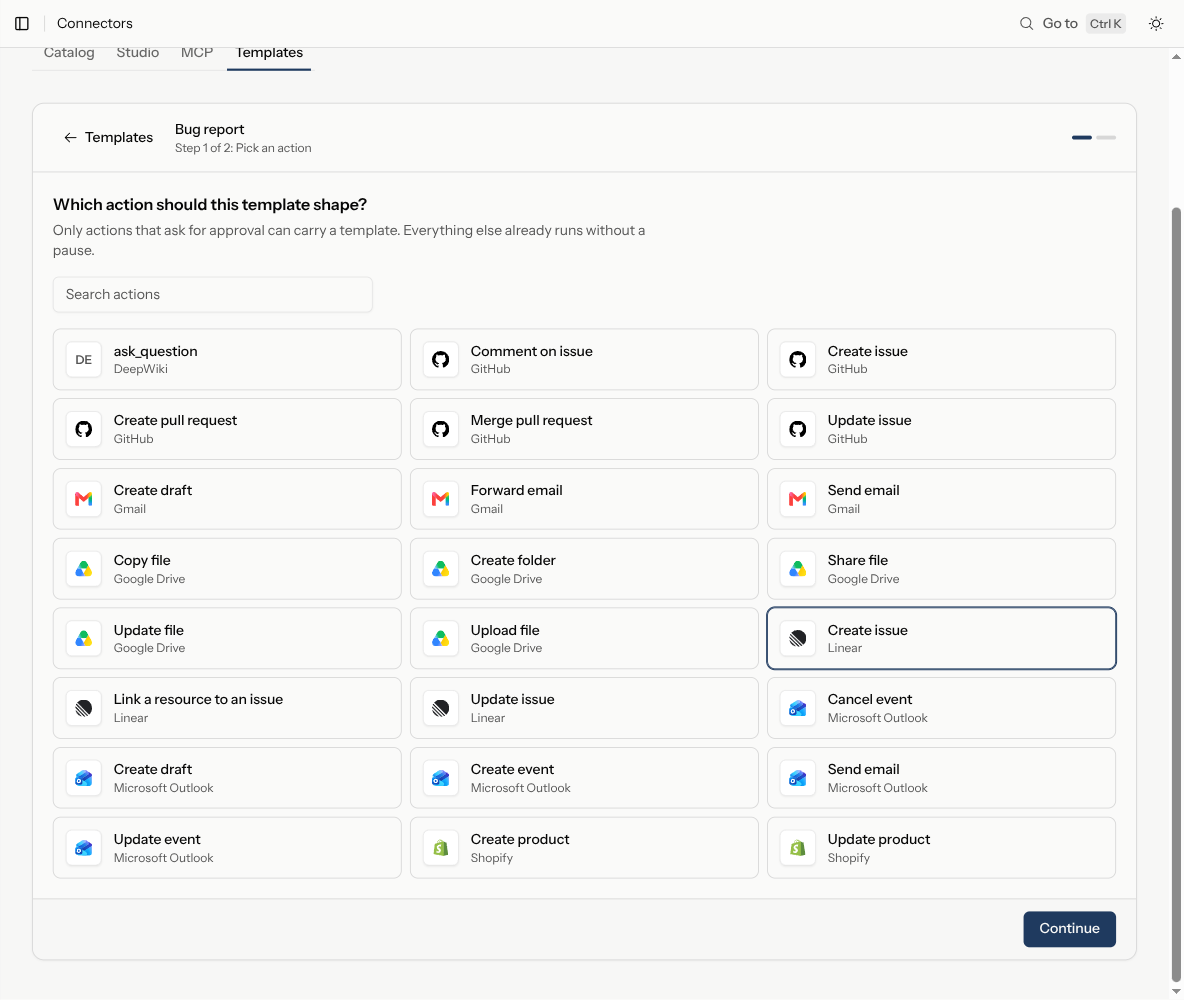
Pick the action
Search the actions your tools expose. Only actions that ask first are listed.
Pin the fields
Pin what should never vary. Everything you leave off stays Stedia's call. The step counts as you go, and the preview names the fields Stedia will receive already filled in.
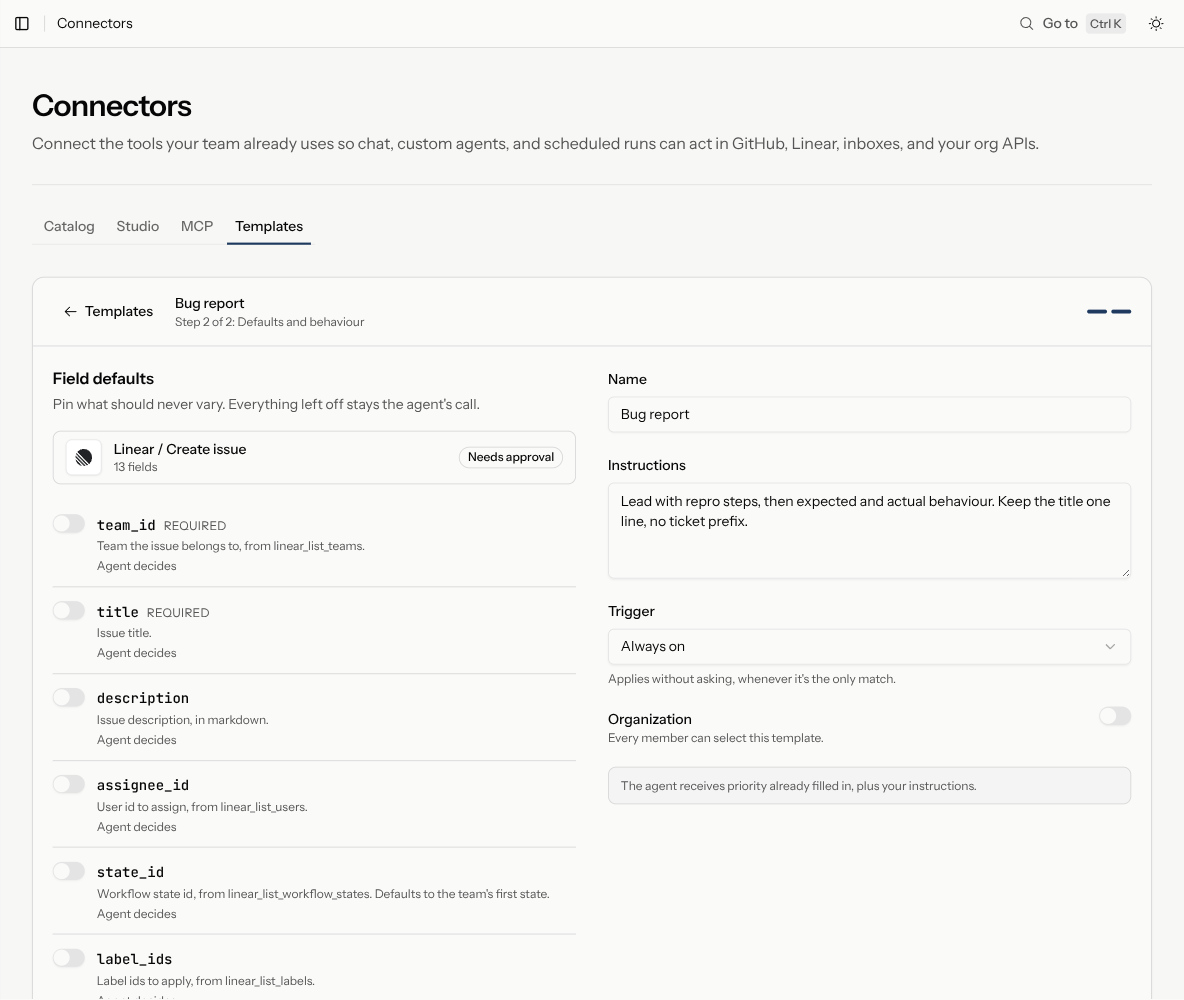
Set trigger and scope
Choose Allowed without asking or Asks first, then Workspace or Only me. Save.
The table lists every action preset you can see with its scope, trigger, and a summary of the pinned fields.
How one gets picked
Before calling the action, Stedia collects every action preset matching it, workspace and personal together.
- No match. The action runs as it always did.
- One match, Allowed without asking. It applies silently.
- One match, Asks first, or two or more matches. A Choose a preset card appears in chat. Step through the candidates, click Use this preset, or click Continue without one.
Trigger only decides the single-match case. Two candidates always mean a choice, whatever either one is set to.
Picking a different action preset, or none, is the override. Individual fields are not renegotiated mid-conversation. An action preset is all or nothing.
Send with your email layout
An action preset on Send email or Create draft for Gmail or Outlook can carry your own HTML email. Stedia writes into it, and everything else in the file stays as you designed it: logo, colors, footer, legal lines.
- Open the preset and continue to the Email layout step.
- Drop your
.htmlfile there, up to 100 KB. - Stedia reads the file and shows a sample email in your layout, with the parts it fills listed above it. You don't mark anything yourself.
Stedia fills the message body and the parts that change per email, such as a headline, a button, or the preview line in the inbox. Paragraphs, headings, lists and links take the styles your file already uses. A placeholder like {{first_name}} in a fixed part becomes something Stedia fills, so it never reaches a recipient as written.
The approval card shows the email as it will arrive, and Values shows exactly what Stedia wrote. If the file doesn't work, upload another one. The preset works without a layout too.
Tips
- Start with Asks first. Once the preset fills the action the way you want, switch it to Allowed without asking.
- Try a new preset as Only me before an admin shares it with the Workspace.
- Keep one preset per action if you want it applied without a question. Two matching presets always bring up Choose a preset.
Turn the feature off
Action presets are on by default. An owner or admin can turn them off for the whole workspace with Use presets under Settings → Tools and knowledge → Action presets. The Action presets button disappears and no action preset reaches Stedia. Saved action presets are kept, and members can still review and delete them.