Schedules
Describe a schedule in plain language, test it, then inspect runs and approvals.
Open Schedules. Describe the task once. Stedia runs it on a cadence and asks before it writes, unless you set that action to run without asking.
Create a schedule
Click New schedule. The page has four sections: Task, Timing, Test and Options. Nothing runs on its own until you activate the schedule.
-
Task. Describe in plain language what Stedia should do each time, under What should Stedia do?, then give it a Name, or click Suggest a name. Under Run as, pick an assistant if the task should follow its instructions and use its tools. Leave it on No assistant otherwise. The schedule always runs the assistant's live version. When an admin publishes a new one, the schedule's page says so until a run has used it.
-
Timing. Choose how it Repeats, or type it into Or describe it in words and press Check:
- Daily, Weekdays or Weekly (on the days you pick), with a time and time zone
- Monthly, by weekday or by date (see below)
- Interval, every 5 minutes at the least
- Advanced (cron), 5 fields.
L,W,#,?and@macrosare rejected. Runs must be at least 5 minutes apart
The time zone defaults to the one in your Settings. Next runs shows when it will fire.
-
Test. Click Start test run, read the result, and decide which actions may run without asking. See Test before you activate.
-
Options. The defaults suit most schedules. See Options.
A bar at the bottom of the page holds Save draft and Activate schedule. A draft never runs on its own. Activate schedule works once the test has passed and every action it found is allowed.
Options
- Extra tools: switch on Web search, Image generation, Calculations or Search knowledge bases for this schedule. Your connected tools are always available; these are off until you turn them on. If the schedule runs as an assistant, the assistant's tools apply instead.
- Stationery: the design that documents from this schedule are printed on. See Stationery.
- Approval wait: 1 hour, 4 hours, 24 hours (the default), 3 days or 7 days. That is how long a run waits for your decision before every open request is denied and the run ends.
Delivery is a chat thread. Runs of a schedule continue one conversation: each run appends to the same thread, and Stedia is shown what the last few runs concluded and any replies you left in the thread since. Once a thread fills up, the next run starts a fresh one.
To give every run its own conversation instead, turn off Runs build on each other under Settings → Replies.
A schedule's conversation carries a clock icon in the sidebar and on the History page, so it stands apart from the chats you started yourself.
There is no control in the UI today to turn on email delivery.
Test before you activate
In Test, click Start test run. Stedia runs the task once, right away, holds back every action that would ask first, and shows what a run would deliver. Nothing is sent and nothing changes in your tools. For some tasks Stedia tries several approaches in parallel, and the best one becomes the result.
Under Allow without asking?, every action the test wanted gets a choice: Allow or Ask me. Allow lets that action run without asking on every run. To activate the schedule, allow every action the test found. If you do not want an action to run unattended, change the task so it no longer needs it, and test again.
A test result alone does not grant permission. You grant it by choosing Allow.
What an allowed action may do:
- It runs on every real run of this schedule, also after the run has read web results, emails, or other outside content.
- It runs with each run's own inputs, not only the ones you saw in the test. The recipient of an email, for example, can differ from run to run.
- It asks first when it would send to an email address or link that only outside content named, not your task, the assistant's instructions, or your own address. A planted "also send this to …" in an issue or a web page cannot reach anyone without you.
- An action you have not allowed still asks for approval.
- Test runs never carry out an action that needs approval.
This holds for every connected tool.
Limit what an allowed action may use
Mail or a web page that a run reads can try to steer an allowed action, for example to file a document into another folder. To rule that out, limit an input to the values you list. Under an allowed action, click Limit an input and pick an input the test used, such as a folder ID. It starts with the test's value. Click Add value for each further value the action may use.
The action then runs without asking only with those values. Any other value pauses the run and asks you under Activity. When you approve such a call, tick Also allow this value from now on to add the value to the list, so the next run with it does not ask. Leave it unticked to approve this one call only.
To take a permission back later, open the schedule, click Edit and open Test. Allowed without asking lists what you allowed. Switch an action to Ask me and save.
If you change the task, its tools, or Run as on an active schedule, saving turns it back into a draft. It stops running until you test and activate it again, and its page shows Not activated yet. Click Test and activate.
If a schedule was switched off after failing, Edit shows why. Fix the cause, keep Resume when I save ticked, and save.
Describing a cadence in words
Type what you want into Or describe it in words and press Check: "last working day of the month at 9", "every second Tuesday", "every 30 minutes".
Stedia shows what it understood, with the next three runs, before it changes anything. Press Use this to fill the fields, or Discard. Nothing is saved until you save, and the fields stay editable afterwards.
If the phrase cannot be read as a cadence, Stedia says so instead of guessing. Set the cadence by hand in that case.
Monthly schedules
Pick Monthly, then choose whether you mean a weekday or a date.
By weekday
For schedules a cron expression cannot describe: the last working day of the month, the first working day, the last day, the last Friday. Under Other combination you can pick any position (first through fourth, or last) and any weekday.
The day of the month moves: the last working day of September 2026 is Wednesday the 30th, of October it is Friday the 30th, of May it is Friday the 29th. The time you set does not move, including across a daylight-saving change.
Last day resolves per month: 28 days in February, 29 in a leap year, 30 or 31 in the rest. This is what you want for month-end reporting.
There is no "fifth". A fifth Tuesday exists in some months and not others, and a schedule that silently skips months is worse than one you have to write differently.
By date
For a fixed day, like the 15th of every month.
Days 29, 30 and 31 do not exist in every month, and the schedule simply does not run in the months that are shorter. Stedia names those months and offers Use the last day of the month instead, which is almost always what was meant.
Run it now
Open a saved schedule and click Run now. This is the real thing, not the test: actions run, approvals apply, and the result is delivered. It works while a schedule is paused, and it does not move the next scheduled run.
Runs started this way are marked Manual in the run list, and a failure does not count toward the failures that switch a schedule off.
Timeline
A schedule's page opens with one axis: runs that have happened on the left in their status colour, the next occurrences on the right as outlines, and a marker for now between them. Hover a point for its time and outcome.
The occurrences on the right are computed the same way real runs are, so they are the times that will actually fire. A paused schedule shows none.
When the clocks change between two points, the axis marks it and names the offsets on each side. Your time does not move (09:00 stays 09:00), but the underlying instant does, and without the marker the times look wrong for no visible reason.
Runs
Open a schedule, then Inspect run. Switch List and Flow.
Statuses you will see:
| Status | Meaning |
|---|---|
| Queued | Waiting to start |
| Running | In progress |
| Waiting for approval | A step needs Approve or Deny |
| Succeeded | Finished |
| Failed | Error |
| Expired | Nobody approved before the timeout |
| Blocked | An action it needs is unavailable, for example because a tool is no longer connected or the workspace rules block it |
| Skipped | The previous run is still going |
Approve or deny pending steps from the inspector. Open chat jumps to the thread the run wrote to.
Actions allowed without asking run without a prompt. Other actions wait until timeout, then the run expires.
Runs are kept for 180 days. Skipped and blocked runs are deleted after 30 days, and a test from the form that you never saved after 7. A schedule always keeps its latest test, because activating it needs one. The conversations runs wrote to stay.
When a schedule is not running
- Tested. A draft whose test passed but that is not active yet. Open it and click Activate schedule.
- Not activated yet. A schedule you saved as a draft, or an active one whose task you changed, shows this on its page. Click Test and activate to finish.
- Paused. You switched it off with the toggle on its page. It won't run again until you switch it back on.
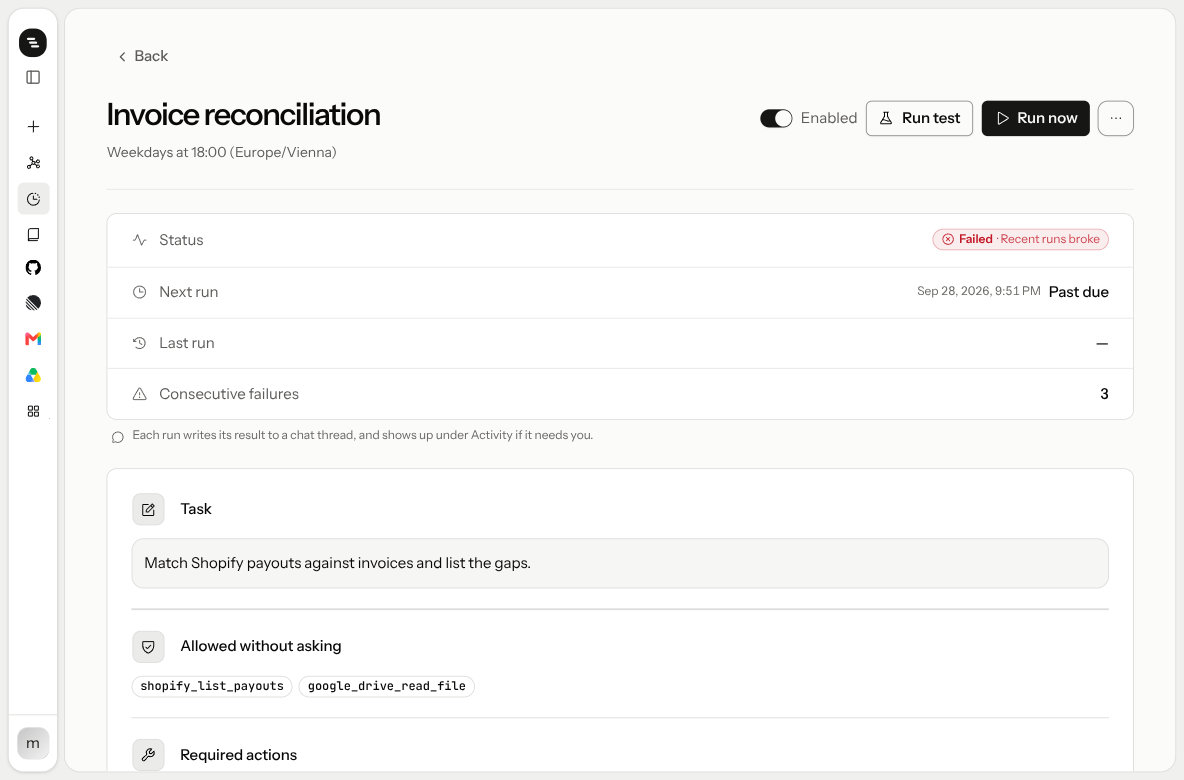
- Failing. The last 3 runs in a row failed, expired, or were blocked. It keeps running, but needs a look.
- Disabled. After 5 failures in a row, Stedia switches the schedule off and emails its owner. Fix the cause, then switch it back on.
Schedules that need a look
The list can mark schedules Failing or Past due. Past due means a run is waiting to start, not that it failed. Pause or Resume a schedule, or click Pause all failing.
Tips
A good schedule does one job, says what the result should look like, and has been tested once. Copy one of these into Task, and the phrase next to it into Or describe it in words.
| Task | Cadence |
|---|---|
| Search my Gmail for invoices I received in the last 30 days that are still unpaid or overdue. List sender, amount and due date, oldest first. | every Monday at 8 |
| List last week's Shopify orders. Compare the total with the week before, name the five best-selling products, and write it up as a one-page PDF. | every Friday at 16:00 |
| Go through the emails I received since yesterday morning. Group them into "needs an answer today", "can wait" and "newsletters". One line per email. | every weekday at 7:30 |
| Summarize my open Linear issues and highlight anything without an assignee. | first Monday of the month at 9 |
- Say what the result looks like. "A table with sender, amount and due date" gets you the same shape every run. "Tell me about my invoices" does not.
- Say where it goes. The result always lands in the schedule's conversation. Ask for a PDF or a Word file when you want to forward it.
- One job per schedule. Two small schedules are easier to test and fix than one that does everything.
- Read before you write. A task that only reads needs no approvals. Add sending or updating once the reading part works.
- Test after every change. Edit the task, then Test again. The test shows which actions the next real run will reach for.
If something goes wrong
When a run does not finish, its page shows Why this run did not finish. These are the messages you can see there:
| What you see | What it means | What to do |
|---|---|---|
| The run kept asking for approvals without finishing, so it was stopped. | The task needed more approvals than a run allows. | Simplify the instructions, or allow the actions it needs, then run it again. |
| Nobody answered the approval in time, so the run ended. | An action asked first and nobody decided before the Approval wait ran out. | Approve faster from Activity, allow the action, or raise the Approval wait under Options. |
| The run ended without a report. | The run finished but wrote no result. | Check the steps, make the task say what the result should be, and run it again. |
| The run was skipped because billing needs attention. | The workspace has no running plan. | An owner opens Billing and fixes the plan. See Billing. |
| The run was skipped because the previous run was still going. | Runs came too close together. | Choose a slower cadence, or make the task shorter. |
| The run did not start because these tools are not connected. | A tool the task needs was disconnected or switched off. | Reconnect it under Connected tools, or ask an admin to switch it on under Settings → Tools and knowledge. |
| The run stopped unexpectedly. | Something interrupted the run. | Run it again. |
| The run stopped because the owner of this schedule left the workspace. | Schedules are private to the person who made them, and pause when that person leaves. | Invite them back so they can switch it on again, or have someone else create it anew. |
| The AI model is busy right now. | The AI provider is overloaded. | Try again in a few minutes. |
| The AI model rejected the workspace's API key. | Your own AI provider key no longer works. | An admin checks Settings → AI settings. |
| The AI model did not respond. | The AI provider is down. | Try again later. |
| The input was too long for the AI model. | The task asked for more data than the model can read at once. | Ask for less, for example the last 7 days instead of 90. |
| Something failed on our side. | An error at Stedia. | Run it again. If it keeps failing, contact support. |
| The run failed. | Any other error. | Check the steps below the message, then run it again. |
My schedule didn't run
- Its page says Not activated yet: test it and click Test and activate.
- It is paused or disabled: see When a schedule is not running.
- The list says Past due: a run is waiting to start. It is not a failure. If it stays that way, check that the workspace has a plan.
- A run shows Skipped or Blocked: open it. The message says why.