Knowledge
Let Stedia search your own documents when it answers.
A knowledge base is a folder of documents Stedia can search when it answers: a product handbook, your price lists, contracts, support answers. Ask a question and Stedia looks in there first, then tells you which document the answer came from.
Use one when the answer lives in your files rather than on the web or in a connected tool.
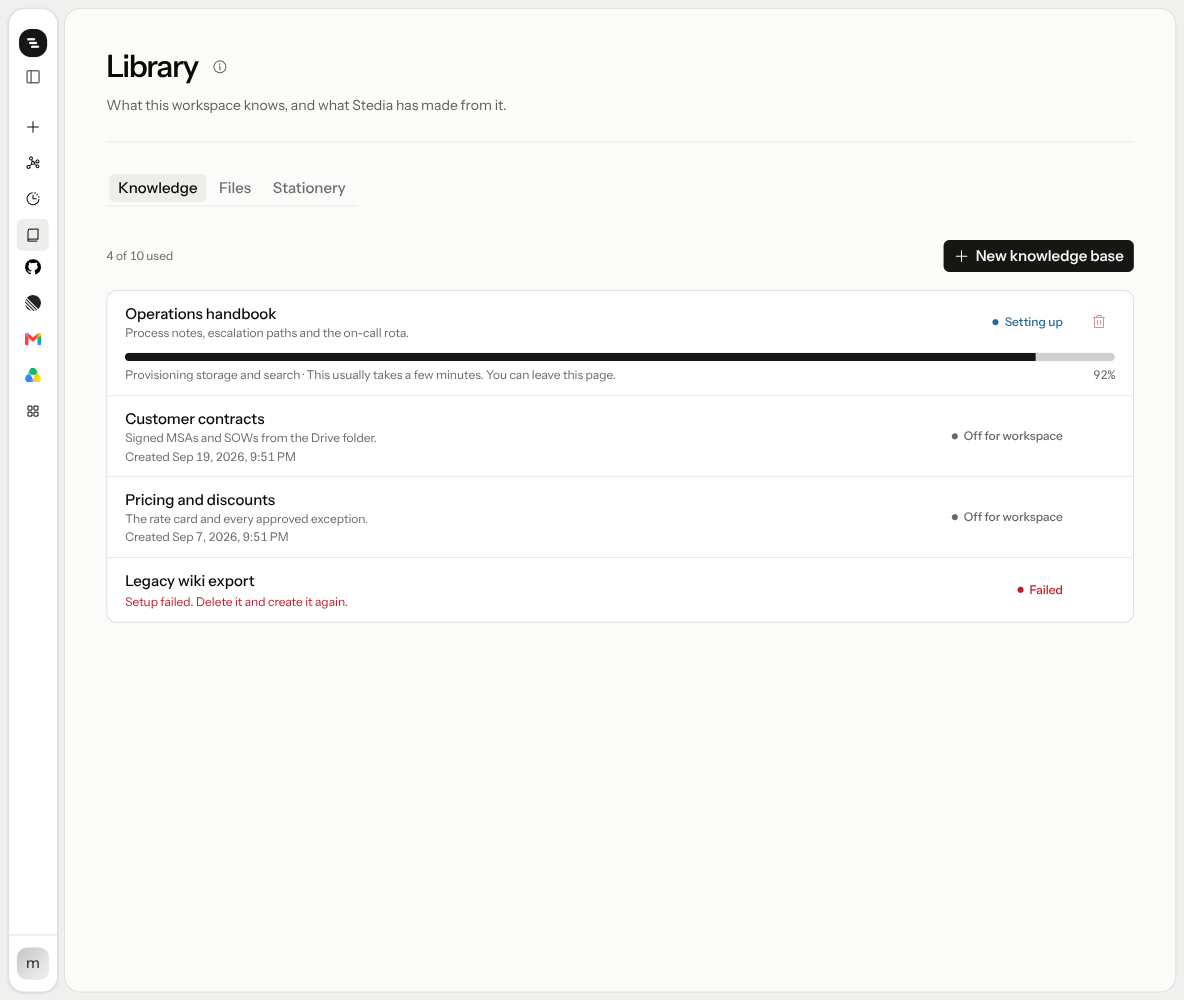
Open Resources → Knowledge. Everyone in the workspace can see the list. Only owners and admins can create, change or delete a knowledge base; members see "Ask an admin to create one."
Create a knowledge base
Name it
Click New knowledge base. Name it after what it will hold, for example "Product handbook". The description is optional, up to 200 characters.
Wait for setup
Stedia sets up storage and search for it. This usually takes a few minutes, and you can leave the page while it runs. When the status reads Ready, you can add data sources.
Add a data source
Click Add data source on the knowledge base's card. The data source is where your documents come from. See below for what you can pick today.
Sync
Stedia reads the files and indexes them. A new data source syncs once a day, at a quiet hour. To index it right away, open its menu, choose Settings and click Sync now. Once a sync finishes, the source shows how many files it read and when.
A workspace can have up to 5 knowledge bases, and each knowledge base up to 5 data sources.
Data sources
A data source is an Amazon S3 bucket or your company's OneDrive. Google Drive, SharePoint, Box, Confluence, ServiceNow, a website and a custom API source are listed in the picker as Soon.
With Amazon S3 you choose who owns the bucket:
- Your bucket: point Stedia at a bucket you already own. Enter the Bucket ARN and your AWS account id, then copy the Bucket policy Stedia shows you and attach it to the bucket before the first sync. The policy lets Stedia read. Stedia never writes to your bucket.
- Managed bucket: Stedia creates a private bucket in its own AWS account. The Stedia app has no upload screen for it yet, so pick Your bucket if you want to add the files yourself.
Deleting a data source detaches it. Your own bucket is left untouched. A managed bucket is deleted together with every file in it.
OneDrive
Stedia reads OneDrive through its own app, Stedia - KnowledgeBase, which a Global Administrator or Privileged Role Administrator of your company's Microsoft 365 approves once for the workspace. After approving, Microsoft signs them in once more so Stedia can check that role. Usually that needs no input.
- Sign in to Stedia once with your Microsoft work account. That is how Stedia knows which Microsoft 365 to connect.
- Add a data source, pick OneDrive, then Approve in Microsoft 365. Not a Microsoft 365 admin? Use Copy link for your IT admin and send it on. The link works once, for 7 days.
- Choose Everyone or Selected people, then name the data source.
Each person only gets answers from files they can open in OneDrive. Stedia matches people by email, so it works for someone whose Stedia email is the one Microsoft 365 knows. Files only shared with a person and OneNote notebooks are not read. The Stedia email has to be verified; an unverified account gets nothing from OneDrive sources. A scheduled run searches with the access of the schedule's owner.
The app reads files, sites, users and groups. It also has full control of SharePoint sites, because checking one person's access to one file needs it. Stedia only reads.
To disconnect, delete the OneDrive data sources, then choose Disconnect on the Microsoft 365 card under Resources → Knowledge. To remove Stedia's access in Microsoft 365 as well, delete the Stedia - KnowledgeBase enterprise app in Microsoft Entra.
Sync and index settings
Each data source has its own Settings:
- Sync: On demand, Daily, Weekly or Monthly. A new data source starts on Daily. Scheduled syncs run at a quiet hour. Sync now starts one straight away.
- Index: switch on Visual content in documents (images, and figures inside PDF, Word and PowerPoint files), Audio files or Video files if you need them read too.
- Include only and Exclude: limit which files are read. Use
*.pdffor a file type,reports/for a folder,drafts/**for everything under it. Up to 20 patterns each.
Encrypted, unsupported and very large files are skipped. The source tells you how many.
Use it in a chat
Once a knowledge base is ready, a Knowledge button appears in the chat box next to web search. Switch it on and Stedia searches your knowledge bases for the messages you send. It stays on until you switch it off or reload the page.
Leave it off for questions that have nothing to do with your documents.
Under the answer, chips such as 2 documents and 5 matching excerpts show what Stedia found. One search returns up to 12 excerpts.
Use it in an assistant
An assistant can have its own knowledge. In the assistant builder, the Tools and knowledge step lets you pick which knowledge bases it may search. An assistant searches those on its own; it doesn't need the Knowledge button.
Who can use which knowledge base
From an Amazon S3 source, anyone whose chat or assistant can reach the knowledge base can find everything in it. There are no per-document permissions there, so only put in documents everyone who has access may read. OneDrive sources are different: each person only gets answers from files they can open in OneDrive.
Admins decide the reach under Settings → Tools and knowledge:
- Switch a knowledge base off for the whole workspace. Stedia then skips it, and no data sources can be added. Everything already indexed stays in place.
- On Business and Enterprise, set it per team. A team setting wins over the workspace setting.
Tips
What is our return policy for damaged goods? Tell me which document you found it in.Compare the warranty terms in our contracts with Müller GmbH and Schmidt AG.- Switch on Knowledge before you ask. A plain chat only searches your knowledge bases while the button is on.
- Give an assistant its own knowledge base. A support assistant with your handbook searches it on every question, no button needed.
If something goes wrong
- Setup failed: delete the knowledge base and create it again. If it keeps failing, contact support.
- Sync failed on your own bucket: check that the bucket policy is attached, then click Sync now.
- This workspace has reached its limit of 5 knowledge bases: delete one you no longer need.
- No Knowledge button in the chat box: no knowledge base is ready yet, or an admin switched it off for the workspace.