Chat
Compose on Home, work in threads, attach files, search the web, and share a conversation.
Type on Home, or click New chat at the top of the sidebar. The first message you send from Home starts a new chat and opens it.
The composer placeholder is Ask anything. Welcome suggestions sit under it on Home.
Attachments and web search
Click Add photos & files to attach images or documents.
Web search on the composer starts on. Switch it off for a message whose answer is in your own tools. It is missing when an admin, the assistant or the workspace rules turned web search off.
Mention a tool
Type @ in the composer and pick one of your connected tools, such as Gmail, or a file. The list shows your connected tools under Tools and your newest files from Resources under Files. What you pick shows up as a chip in your message, so Stedia knows which one you mean. Click a file chip in a sent message to open the file.
Sources and files in the answer
Under an answer, chips such as 3 websites, 2 documents or 5 matching excerpts list what Stedia read. Click one to unfold it. When Stedia searched several times, one row says Searched 4 times. Files Stedia names in an answer are links that open the file. Stedia can also read and search the files in Resources by name, PDF and Word files included.
Slash commands
Type / in the composer:
| Command | What it does |
|---|---|
/translate-en | Translate to English |
/translate-de | Translate to German |
/image | Generate an image |
Edit an image
Hover over an image Stedia made and click Edit image. The image shows up as a chip in the composer; type the change, such as "make the sky blue", and send. To edit a photo of your own, attach it or mention it with @, then say what to change. Stedia can also combine up to three images in one request. Every edit is a new image, so the earlier ones stay in the chat. Stedia remembers the five newest images in a conversation, so "make it bluer" still works a few messages later.
Approvals
Actions that change something in a tool show Asks first. Stedia pauses on the card, and nothing happens until you decide.
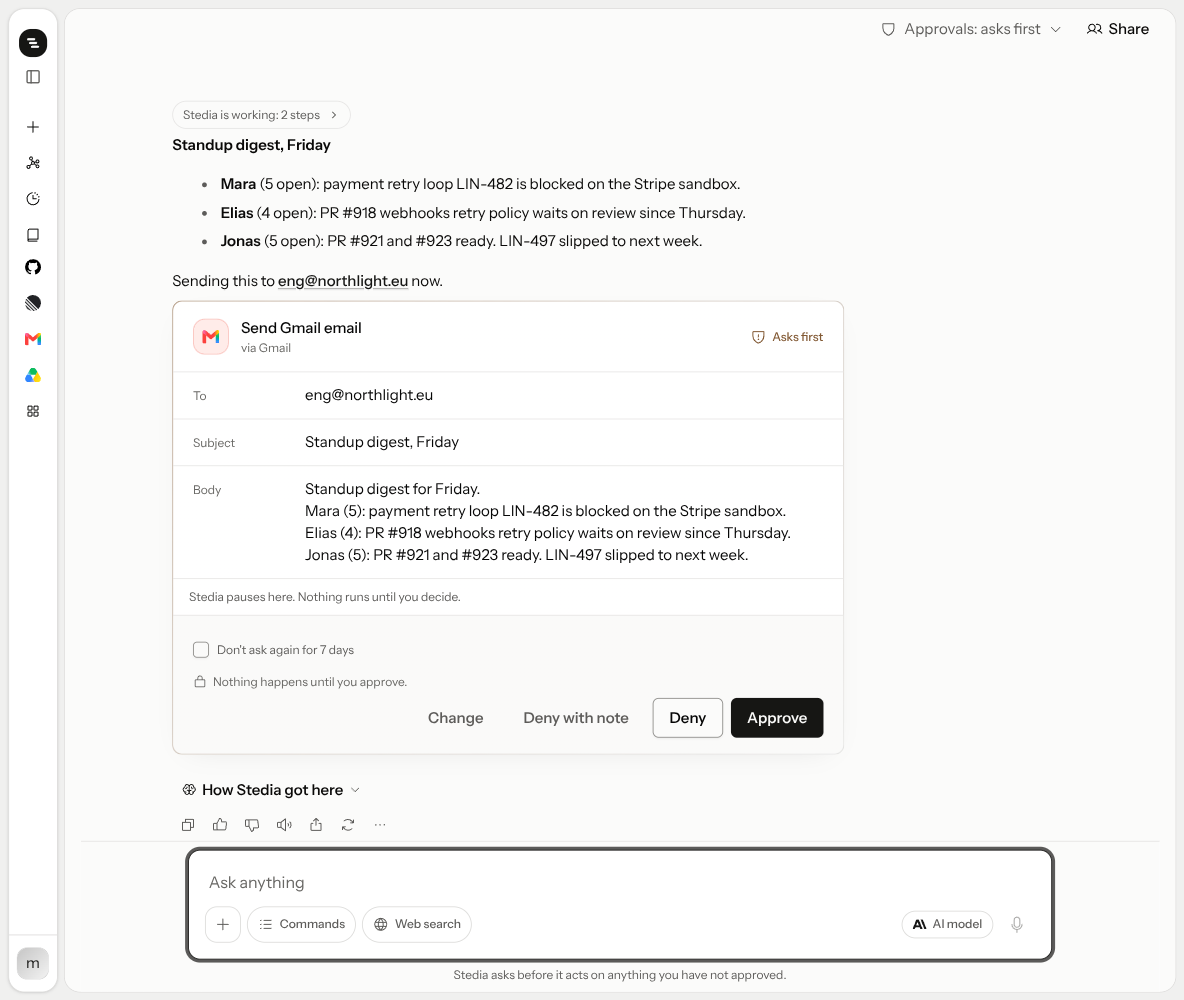
On the card you can:
- Approve to run the action as shown.
- Deny to stop it. Deny with note stops it and tells Stedia what to do instead.
- Change to edit the values first, then Approve with changes.
- Tick Don't ask again for 7 days before you approve. The same action then runs without asking in your chats for the next 7 days.
When Stedia wants to run several actions at once, one card holds them all. Step through them, or use Approve all and Deny all.
Some actions can be reversed for 15 minutes after they ran. The card then shows Undo and how many minutes are left. After that, ask Stedia to reverse it. Stedia is told what you undid, so later answers do not treat the reversed result as current.
Allowed without asking
There are two ways to skip the question:
- For one chat. Switch the approvals setting on the thread to Allow without asking in this chat. It applies to you only, in that conversation, until you turn it off.
- For one action, for 7 days. Tick Don't ask again for 7 days on a card. You find every action you allowed this way under Settings → Allowed without asking, where you can Revoke it.
Schedules have their own rules
Neither setting changes what a scheduled run may do without asking. You decide that on the schedule itself.
Share a thread
Click Share. People you add from the workspace become collaborators. Everyone sees the full conversation, including its files and tool results from each participant. Stedia uses the tools of whoever sends the next message.
A shared chat lists its files under the header, whoever made them. Each file shows who made it, and New marks the ones that arrived since you last looked. Use in message attaches one to your next message. Only the person who made a file can delete it.
While someone else's message is being answered, you watch the reply come in and can type again once it is done. Their avatar in the header shows they have the chat open, and a line above the message box shows when they are typing.
You can leave a shared chat. The owner stays.
A dot after a thread's name in the sidebar or on the History page means it has messages you have not seen yet, such as a collaborator's reply or a scheduled run. Opening the thread clears it.
A scheduled run can write into a thread. The UI says when that is happening.
History
The sidebar lists chats grouped by Today, Yesterday, and Earlier. Archive or delete from the row menu. History is the searchable archive of chats, assistant threads, and schedules.
Tips
A good request says what you want back, where the information lives, and in which form.
Go through my Gmail from this week and find customer questions about delivery times.
List each one with the customer's name and a one-line summary.Draft a reply to the latest email from Müller GmbH. They asked for a discount on 50 units.
Offer 5 percent and keep it short.Here is our price list. Write an offer for 20 units of the standard package for
Bäckerei Sonnenschein, as a PDF.- Pick the tool. With several tools connected, type
@and choose one, for example Outlook instead of Gmail. - Web search is for things outside your tools: public prices, opening hours, news. Switch it off when the answer is in your own tools.
- Ask for a document. Say "as a PDF", "as a Word file" or "as a spreadsheet". A PDF carries your full stationery. A Word file is easier to edit.
- Ask for a chart. Say "as a chart" and Stedia draws bars, lines, areas or a ring in the reply. Switch to Table to see the numbers. The same chart appears in a PDF or Word file made from it.
- Attach the right format. Images, PDF, CSV, TXT and Markdown, up to 4 MB each. Save Word and Excel files as PDF or CSV first.
- Check the result. Stedia can make mistakes. Read what it made before you pass it on.
If something goes wrong
| What you see | What to do |
|---|---|
| "The tool rejected the connection." | The sign-in to that tool expired or was taken back. Reconnect it under Connected tools. |
| "The tool doesn't allow this action for this account." | The connected account is missing a permission. Check the tool's page in these docs, or connect an account that has it. |
| "Stedia stopped before finishing this reply. Send your message again." | Send your message again. |
| "This file is too large." or "This file type isn't supported." | Attach files up to 4 MB, as an image, PDF, CSV, TXT or Markdown. |
| "The undo window has closed." | Undo only works for 15 minutes. Ask Stedia to reverse the action instead. |
| "This workspace is paused until a workspace owner picks a plan." | An owner has to choose a plan. See Billing. |