Get started
Sign in, set up a workspace, pick a plan, connect a tool, and get a first useful result.
This walkthrough takes you from a new account to a first result in a connected tool. Pick something real. "List my open Linear issues" beats a hello.
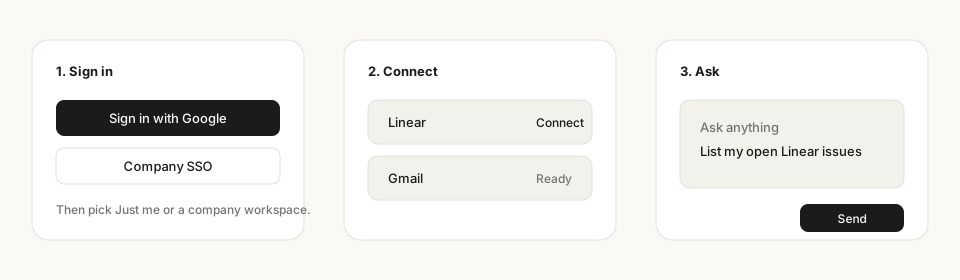
Sign in or create an account
Open app.stedia.ai.
- Click Continue with Google or Continue with Microsoft. Microsoft takes work, school and personal accounts. If your workspace has single sign-on set up, a company account joins it on its own. Or
- Expand Continue with email and sign in with email and password.
New to Stedia with an email address? Click Sign up, fill in your name, email and a password of at least 12 characters, then click Create account. Open the confirmation link Stedia emails you before you continue. No email after a minute? Check your spam folder. The first time you sign in, Stedia asks you to accept the terms of service.
There is no password reset yet. If you lose an email password, contact support and we help you sign in.
If you were invited, open the invite link first. Accept it after you sign in.
Set up a workspace
The first time you land in the app, a short setup walks you through Workspace, Team, Tools and Ready.
- Workspace. Just me creates a workspace you can rename later. My team asks for a workspace name, usually your company's. If you already have an invitation, you can join that workspace instead, or click Create my own workspace instead.
- Team. Only with My team: invite colleagues by email, or click Skip for now.
- Tools. Connect your mailbox: connect Gmail or Outlook, or click Skip for now. Click Finish setup when you are done.
- Ready. Click Run my first task, or Open home.
A person belongs to one workspace. To join another, leave the current one first.
Choose a plan
A new workspace starts once a plan is running. Until then, owners see Choose a plan to get started, and nothing runs yet: no chats, no connected tools, no schedules. Pick Start Pro trial or Start Business trial. Both include a 14-day trial once per workspace, and a card is required. For Enterprise, click Contact sales.
Members of a workspace without a plan see Waiting on a plan until an owner picks one. A self-hosted install has no plans, so it skips this step.
Connect a tool
- Open Connected tools.
- Pick a tool that is ready to connect. Click Connect.
- Choose Personal or Workspace. Workspace shares the connection with everyone in the workspace. That option may require an admin.
- Pick how to sign in, then continue to the provider or paste credentials.
After the provider redirects back, the catalog shows the tool as connected.
Missing from the catalog?
The tool is off for the workspace, or this Stedia install has not configured that provider. Ask an admin. Self-host operators: see Self-host.
Send a first message
On Home, the card Get started shows what is done: Create workspace, Connect your mailbox, then Run your first task, which offers Summarize today's unread email. Telling Stedia about your company, choosing your model and inviting your team are optional. Click Hide to hide the card.
Or write your own request:
- Go to Home.
- Type what you want done. Example: "List my open Linear issues assigned to me."
- Send. Stedia starts a new chat and opens it.
If the action writes or sends, Stedia asks you to Approve or Deny before it runs.
You can also start from Assistants once someone created one, or set up a task that repeats on Schedules.
Try this in your first 10 minutes
- Ask something only your tools know. Connect Gmail or Outlook and ask: "Which emails from customers are still waiting for my answer?" See Chat.
- Turn it into a routine. On Schedules, click New schedule, paste the same question, and type "every weekday at 8" into Or describe it in words. Test it, then activate it. See Schedules.
- Give Stedia your documents. An admin creates a knowledge base under Resources → Knowledge, so answers can come from your price lists or handbook. See Knowledge.
Stuck? The FAQ answers the questions new customers ask most.
Next
- Chat for threads, attachments, web search, and sharing
- Connected tools for the rest of the catalog
- Assistants to lock tools and instructions