Your settings
Choose how Stedia answers you, and how the app looks.
The sections under For you in Settings are yours alone. They change how Stedia answers you, in the web chat and in connected chat apps like Slack or Teams. Everyone in the workspace sets their own.
Open Settings from the menu under your name at the bottom of the sidebar, or press Ctrl+K (Cmd+K on a Mac) and type "Settings". Every setting saves as you change it, and Saved appears beside it.
Profile
Settings → Profile shows your name, email, when you registered and your Sign-in method: Google, Microsoft or Email. Name and email come from the account you signed in with and can't be changed here.
| Setting | What it does |
|---|---|
| What Stedia calls you | How Stedia addresses you, for example in the greeting. |
| Time zone | Your local date and time, so "next Tuesday" and schedule times mean what you expect. Unset, Stedia uses UTC. Stedia suggests the time zone it detected in your browser. |
Appearance
Settings → Appearance applies to this browser only, so set it again on another computer.
- Theme: Light, Dark or System (follows your computer).
- Language: English or German for the app's buttons and menus, and for the emails Stedia sends you, such as invitations and schedule notices. It doesn't change the language Stedia answers in. That is Response language under Replies.
- Text size: Extra small, Small, Standard, Large or Extra large.
Theme and language are also in the menu under your name.
Replies
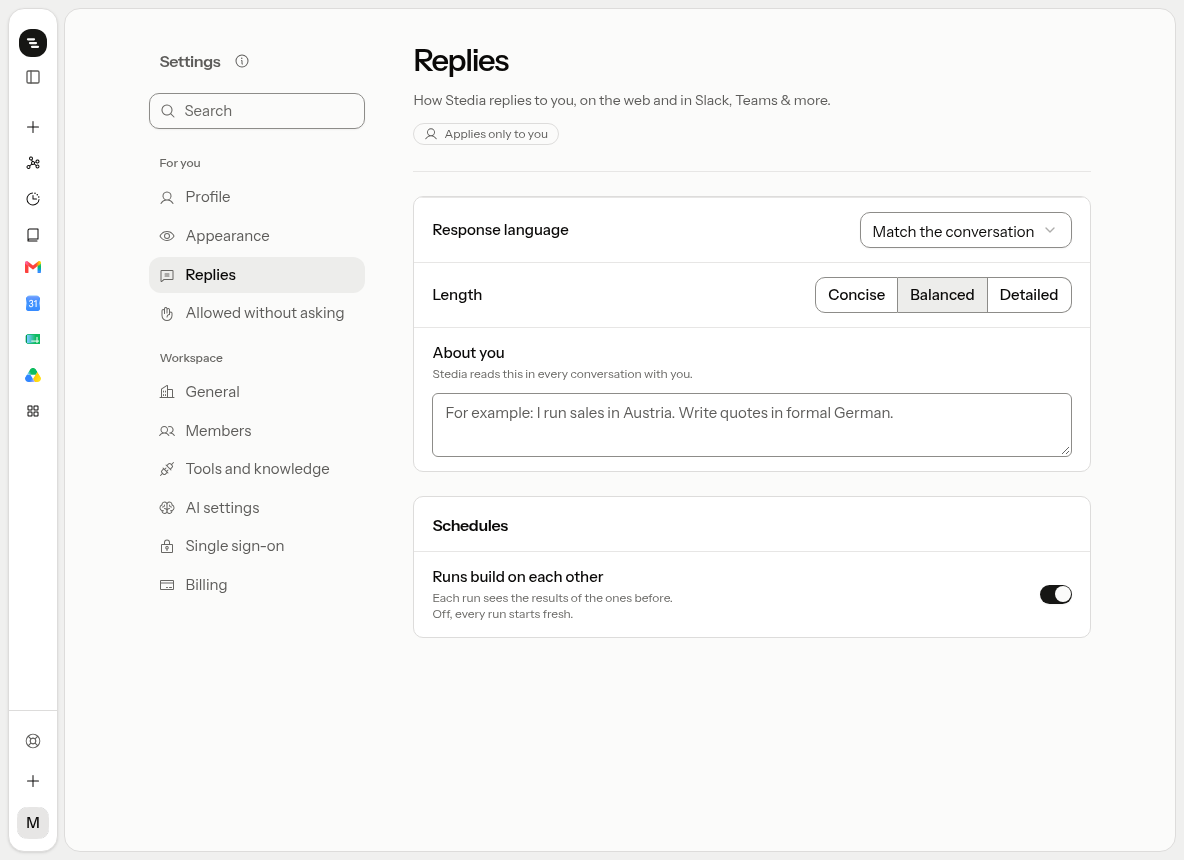
Settings → Replies decides how Stedia answers you.
| Setting | What it does |
|---|---|
| Response language | The language Stedia answers in, whatever language you write in. Match the chat answers in the language you used. |
| Length | Concise, Balanced or Detailed. How much Stedia puts into an answer. |
| About you | Standing notes Stedia sees in every conversation: your role, what you're working on, instructions you always want followed. It saves when you click outside the field. |
| Runs build on each other | On, each schedule keeps one conversation, so a run can build on earlier results. Off, every run starts fresh. See Schedules. |
About you is worth a few lines. "I run a bakery with two shops in Munich. Keep answers short and use euros." saves you from repeating it in every chat.
Allowed without asking
When Stedia asks before an action, you can pick Don't ask again for 7 days. Every action you allowed that way is listed under Settings → Allowed without asking, with the date it runs out.
Click Revoke to make Stedia ask again before that action, starting now. See Chat for how approvals work.
Keyboard shortcuts
| Keys | What it does |
|---|---|
| Ctrl+K (Cmd+K on a Mac) | Opens Go to, to jump to any page by typing its name. |
| Ctrl+B (Cmd+B on a Mac) | Collapses or expands the sidebar. |
| / on Schedules | Jumps to the search box. |
If something goes wrong
- Stedia answers in the wrong language. Set Response language to the language you want, or to Match the chat.
- Dates or "next Tuesday" are off by a day. Check Time zone. Without one, Stedia uses UTC.
- The text size went back to Standard. Text size is saved per browser. Set it again on each computer.
- A setting shows "Not saved". The save failed. Click Try again in the message at the bottom of the screen, or change the setting once more.
- Stedia asks again for an action you allowed. An allowance runs for 7 days. Tick Don't ask again for 7 days once more on the next card.