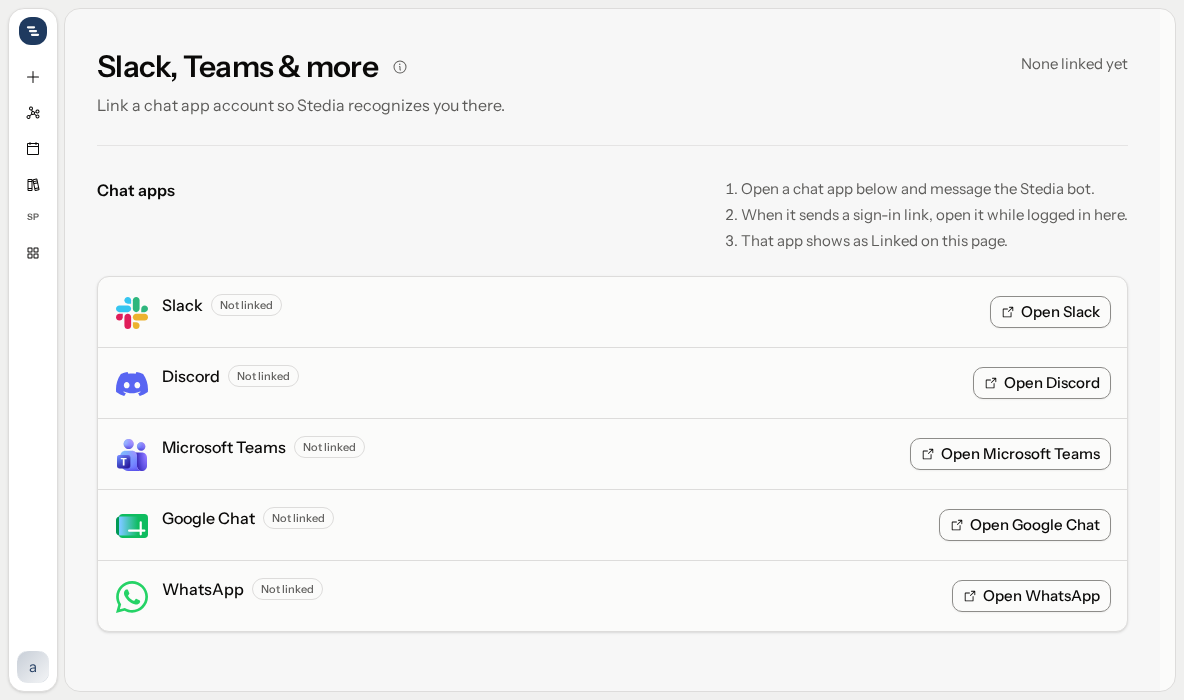
Slack, Teams & more
Link Slack, Discord, Teams, Google Chat, or WhatsApp so Stedia recognizes you there.
Open Slack, Teams & more from the user menu at the bottom of the sidebar, or type its name into the command palette (Ctrl+K, or Cmd+K on a Mac).
Stedia can talk in Slack, Discord, Microsoft Teams, Google Chat, and WhatsApp.
Link an account
- Open a channel on the page and message the Stedia bot there.
- When the bot sends a sign-in link, open it while you are signed in to Stedia.
- Check that the page names your Stedia account, then click Link account.
The bot asks in English or German. In a direct message it posts the link right there. From a Slack or Teams channel it sends the link as a private message; elsewhere only you see it. 4. You see Account linked. Go back to the chat app and send your message again.
The channel on this page now shows Linked.
The link only connects a chat account to your Stedia account. It does not sign you in to the web app. If you are signed out when you open it, click Sign in with Google to finish.
You can link one chat account per platform. If you already linked one, Unlink it on this page first, then message the bot again for a new link.
After linking you see Linked with a sign-in link. Older links can show Matched by email. Copy the account id if you need it. Unlink lets you undo it for a few seconds.
Open Slack (or Discord, Teams, Google Chat, WhatsApp) opens that product.
Get the bot into your company's chat
Adding the Stedia bot to your company's Slack or Teams is a one-time setup for the whole company. Stedia has no button for it yet. Write to info@stedia.ai and we set it up with you. Your chat admin may need to approve the app. Self-host: see Self-host.
Once the bot is in, everyone links their own account as described above.
Tips
- Tag the bot in channels. In a Slack, Discord or Teams channel, a Teams group chat, a Google Chat space, or a thread, Stedia answers only messages that mention it: type
@, pick the Stedia bot, then write your request. In a direct message you don't need to tag it. - Files from Stedia in Google Chat. Google Chat doesn't let bots send files, so a file Stedia makes arrives as a link to Resources → Files.
- Files in Teams. Images Stedia makes show up in its reply. Other files arrive as a link to Resources → Files. To send Stedia a file, use a direct message: files in a channel or group chat don't reach it.
- Approve in the chat app. When Stedia wants to act, the approval shows up as buttons in the conversation. Questions it asks come as cards with choices, or you type an answer.
- Send files. Files you send the bot land in Resources → Files, with the chat app as Origin. The same types and size limit as in the web chat apply: images, PDF, CSV, TXT and Markdown, up to 4 MB each.
- Get documents back. Documents and slides Stedia makes come attached to its reply. One it cannot attach comes as a link.
If something goes wrong
| What you see | What to do |
|---|---|
| The bot does not reply in a channel. | Tag it. In Slack, it also has to be a member of the channel: type /invite there and pick the Stedia bot. |
| The bot does not reply at all. | The bot is not set up for your company yet. See Get the bot into your company's chat. |
| This link is invalid or has expired. | Message the bot again to get a new one. |
| This chat account is already linked to a different Stedia user. | Someone else linked this chat account. Ask them to Unlink it on their Slack, Teams & more page. |
| You already have a chat account linked on this platform. | Unlink it on this page first, then message the bot again for a new link. |
| This link is incomplete. | Open the exact URL the bot sent you, without shortening it. |