Billing and plans
Pick a plan, see what each one unlocks, manage seats and invoices, or delete a workspace.
Every workspace needs a plan before anyone can chat, connect a tool or run a schedule. This page covers choosing one, changing it, paying for it, and what happens when a payment fails.
You see the prices when you start a plan.
Who can do what
| Owner | Admin | Member | |
|---|---|---|---|
| See plan, seats and invoices (Billing page) | Yes | Yes | No |
| Start, change or cancel a plan | Yes | No | No |
| Open Manage billing (payment method, billing details) | Yes | No | No |
| Delete the workspace | Yes | No | No |
Open the Billing page from your account menu or the command palette. Owners also find the same plan controls under Settings → Billing.
Plans
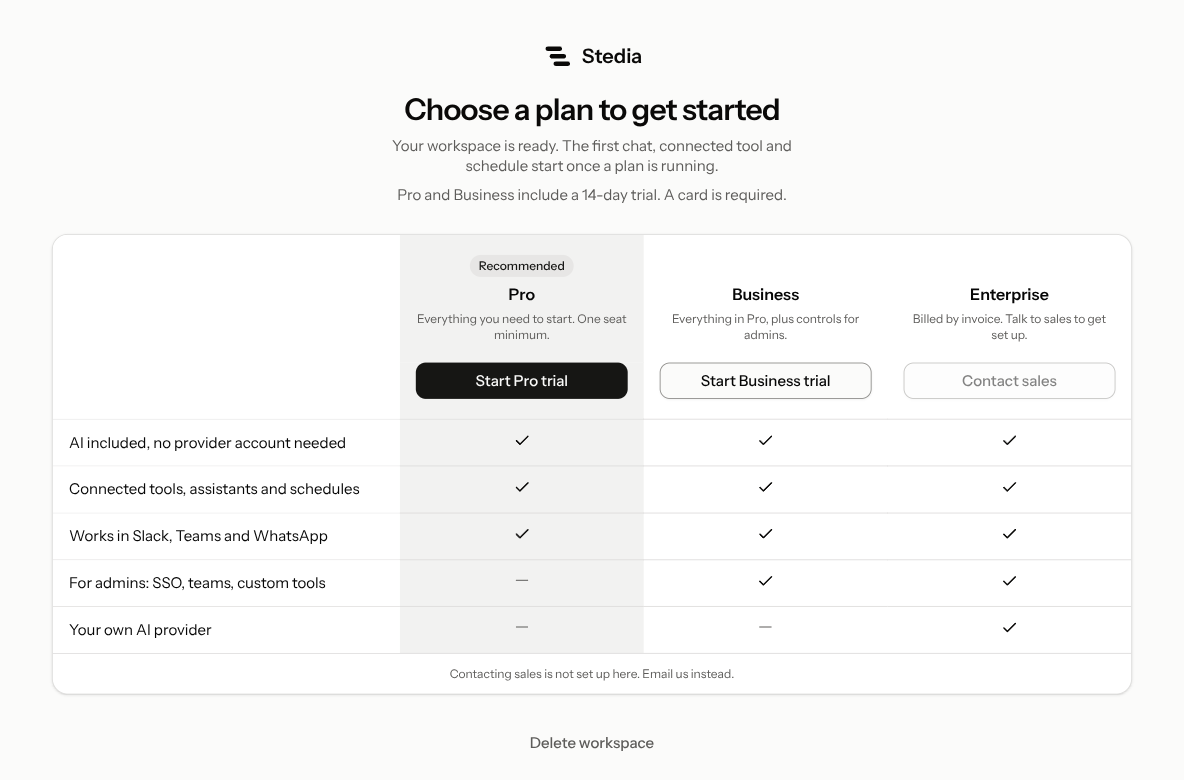
| Pro | Business | Enterprise | |
|---|---|---|---|
| AI included, no provider account needed | Yes | Yes | Yes |
| Connected tools, assistants and schedules | Yes | Yes | Yes |
| Works in Slack, Teams and WhatsApp | Yes | Yes | Yes |
| Single sign-on | No | Yes | Yes |
| Teams | No | Yes | Yes |
| Tool studio for your own APIs | No | Yes | Yes |
| Your own AI provider | No | No | Yes |
| How you pay | Card, monthly per seat | Card, monthly per seat | By invoice |
Pro and Business include a 14-day trial, once per workspace. A card is required to start it. After a trial ended, the buttons read Choose Pro and Choose Business. Enterprise is set up with our sales team: click Contact sales on the plan comparison.
Adding your own MCP server works on every plan.
AI usage
Every plan includes AI usage for the whole workspace each month: €10 on Pro, €30 on Business, and on Enterprise by agreement. Usage beyond that comes on a separate monthly invoice.
You pay per use: each model has its own price per token, for chat, research and images alike. That price follows the AI provider's list price in US dollars, charged as the same number of euros. AI that runs in the European Union has an additional 12% routing fee, because providers charge more there. See Region. Calls on your own AI provider are billed by that provider.
Some models cost more when one call reads a lot, as they do at the provider. Once a single call to Claude Haiku 5.5 or Stedia 1.2 reads more than 100,000 tokens, every token of that call costs five times as much. GPT 5.6 and GPT 6 cost twice as much past 272,000 tokens, and their replies one and a half times. The invoice counts such a call's tokens at that multiple. Usage shows the tokens as they were used.
Web searches, code execution and knowledge base storage are on the same invoice at their own prices. Code execution is billed by the time its machine spends computing and the memory it holds. Usage shows how many tokens each model used.
Start your first plan
A new workspace opens on Choose a plan to get started. Nothing runs until a plan does.
Compare the plans on that screen, or under Settings → Billing.
Click Start Pro trial or Start Business trial. Under Settings → Billing, pick the plan and click Start subscription.
Enter your card and billing details on the payment page. You come back to Stedia when it's done.
Members who open the workspace before a plan runs see Waiting on a plan. Only an owner can start one.
Seats
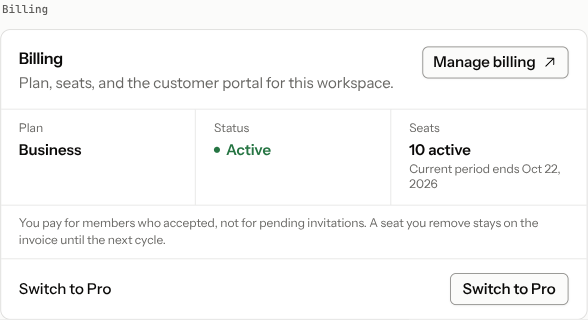
You pay per seat, billed monthly. One seat is the minimum.
- A seat is a member who accepted their invitation. Pending invitations cost nothing.
- Adding someone adds a seat right away. The rest of the current period is charged on the next invoice.
- Removing someone keeps their seat paid until the next billing cycle. If you invite someone else before then, they take that seat at no extra cost.
The Seats figure on the Billing page shows how many seats are active and when the current period ends.
AI usage
Every plan includes a monthly amount of AI usage for the whole workspace. It covers tokens, images, web searches, knowledge base searches and code execution, but not knowledge base storage. Each month's amount expires at the end of that month, and a plan change applies to it from the next period. Usage beyond it, and knowledge base storage, come on a separate monthly invoice in euros, beside the seat invoice.
Change plans
Owners switch under Settings → Billing.
- Upgrade to Business starts Business right away. The rest of this billing period is charged at the difference.
- Switch to Pro starts Pro right away. The unused part of the period on Business comes back as credit.
Before you confirm, the dialog shows the new monthly total and what is due today. If you are still in the trial, it says so.
Pro has no teams. Delete this workspace's teams before you switch from Business to Pro. Existing teams on a workspace without Business stay, but you cannot create new ones.
Invoices and payment details
The Invoices list on the Billing page shows the last 3 months. Use Period to look further back. Each row has a PDF link to download the invoice.
AI usage lines name the region the calls ran in. Usage in the European Union has an additional 12% routing fee, see Region.
To change the card, update your billing address, or cancel, the owner clicks Manage billing. It opens the customer portal of our payment provider. Cancelling takes effect at the end of the billing period.
When a workspace is paused
A workspace pauses when its plan is no longer active, for example after a payment keeps failing or a subscription was cancelled.
- Owners see Choose a plan to keep working, with Manage billing or the plan comparison to fix it.
- Members see This workspace is paused. They need to ask an owner.
While paused, new chats and scheduled runs wait. Scheduled runs are skipped with the note "The run was skipped because billing needs attention." Nothing is deleted: conversations, connected tools and schedules stay as they are and pick up again once a plan is active.
A payment that is Past due does not pause the workspace yet. Update the card under Manage billing before it does.
Delete a workspace
Only an owner can delete a workspace. Open Settings → General and click Delete workspace. It also appears as a link under the plan comparison while a workspace is paused.
Type the workspace name to confirm.
Deleting cancels the subscription immediately and deletes the workspace and its data for everyone. There is no refund, and it cannot be undone.
To leave a workspace without deleting it, see Leave.