Members and teams
Invite people to your workspace and, on Business or Enterprise, group them into teams.
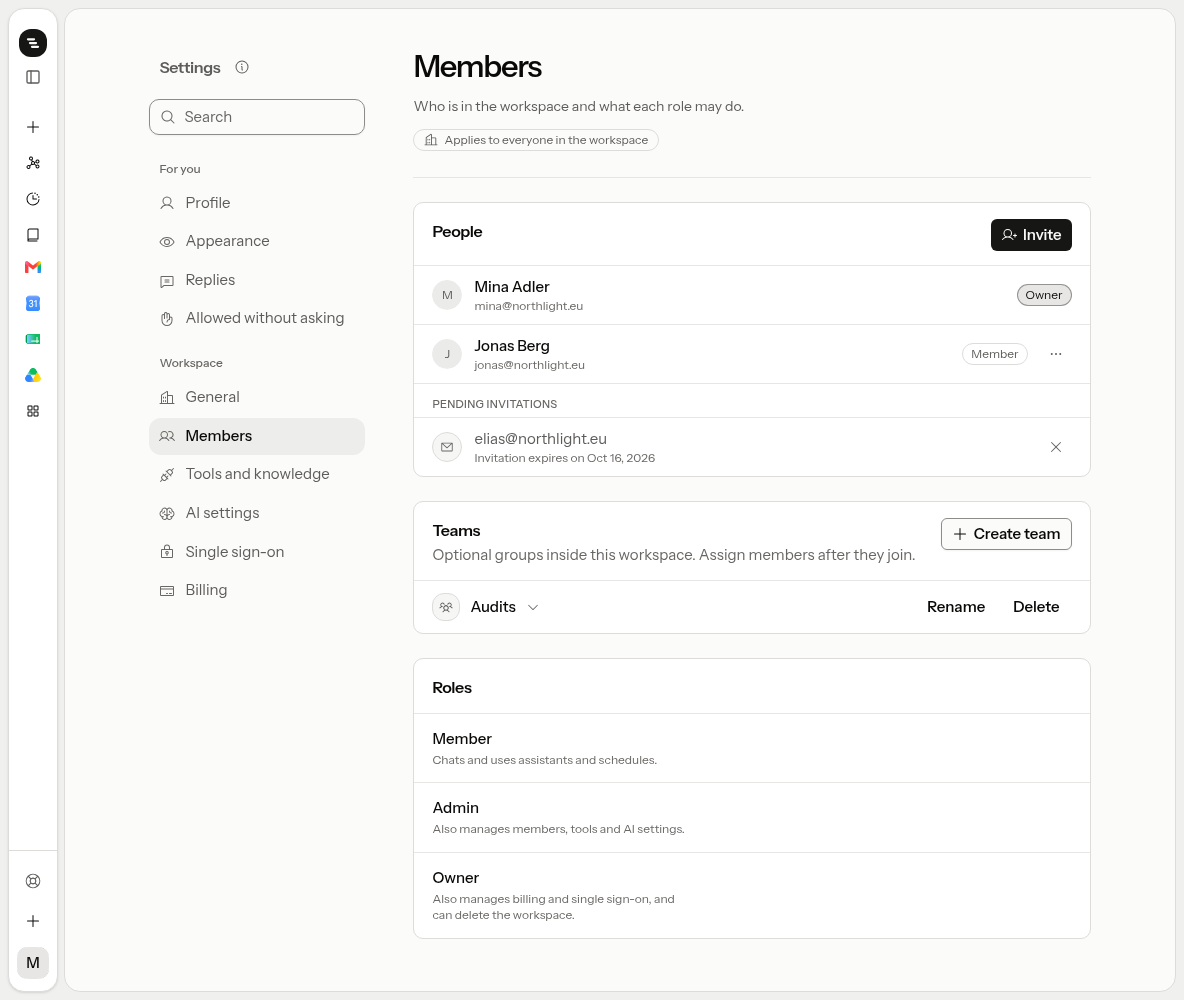
Open Settings → Members. It holds the people, the teams and what each role may do. Only owners and admins see it.
Invite
Click Invite. Enter emails and send. Pending invitations show in the same section, where you can cancel them.
Everyone you invite joins as a Member. Roles:
| Role | What they can do |
|---|---|
| Owner | Everything admins can, plus single sign-on, user provisioning and Billing |
| Admin | Rename the workspace, members, teams, Tool studio and MCP servers, assistants, AI settings, tools |
| Member | Use the product with what admins enabled |
Owners change roles. Open the ⋯ menu on a member's row and pick a role under Change role. Making someone an owner asks first, and you stay an owner. Nobody changes their own role.
Invitees get an email with a link to the workspace and sign in with that exact address, with Google, Microsoft or email and password.
Invitees who are signed out can accept with Google, Microsoft or email. Signed-in users click Accept invitation. A person belongs to one workspace: someone already in another one sees Leave your current workspace first.
Teams
Teams are optional and come with Business and Enterprise. On Pro, the Teams card says so instead. Owners and admins create, rename, and delete teams, then add workspace members.
A team is a subgroup inside one workspace. It is not created by default. Members must already belong to the workspace.
There is no team switcher in the product today. If you belong to one team, that team is your active context. If you belong to none, you work workspace-wide.
A workspace that has teams cannot switch to Pro. Delete the teams first. If the workspace is no longer on Business or Enterprise, existing teams stay, but new ones need an upgrade.
Remove a member
Open the ⋯ menu on a member's row and choose Remove from workspace. Admins remove members; only the owner removes an admin. Nobody can remove the owner.
The person loses access right away. Their schedules pause, any of their runs still in progress stop, and their personal connections are disconnected. Their chats and files are kept. The seat stays on the invoice until the next billing cycle.
Single sign-on does not change this. A removed person is signed out everywhere and does not rejoin through SSO, Google or Microsoft sign-in. To bring them back, invite them again.
Leave
Leave workspace is under Settings → General. Leaving pauses your schedules and disconnects your personal connections, the same as a removal. To come back you need a new invitation.
If you are the only owner, you cannot leave. Make another member an owner first, or click Delete workspace on the same card. It cancels the subscription right away and deletes the workspace and its data for everyone, with no refund.